Cardinal MFA: SMS and Phone Options End April 27 for Non-COV Agencies | Learn More

Cardinal

  • my.cardinal.virginia.gov

Main Menu

  • Applications
    • Applications Overview
    • Financials (FIN)
    • Human Capital Management (HCM)
  • Resources
    • Resources Overview
    • Forms
    • Security
    • Reports Catalogs
    • Agency Interface Layouts
    • Mass Upload Templates
  • Learning
    • Training
    • Job Aids
    • ESS392
    • Course Materials
    • Videos (HCM)
    • Videos (FIN)
    • Forums
    • Resource Revisions
  • User Support
    • Login Help
    • User Support Guides
    • Communications
    • Submit a Ticket
    • Locality Users
    • Cardinal MFA
  • About
    • About Cardinal
    • Announcements
    • History
  • LOG IN TO CARDINAL
  • my.cardinal.virginia.gov

Breadcrumb

  1. Home
  2. Setup Okta FastPass - Desktop

Okta FastPass

Setup Okta FastPass for Cardinal login.

Okta FastPass is a desktop-based authentication method that removes the need for a smartphone during login. By installing the Okta Verify application directly on your computer, you can securely access your Cardinal account using a passcode specific to Okta, your device's built-in passcode, or biometrics (such as a fingerprint or facial scan). Follow the steps below to enable Okta FastPass for Multi-Factor Authentication (MFA).
Before you Begin

Using this method of authentication requires the Okta Verify desktop application to be installed on your computer. 

  • All COV employees have Okta Verify (FastPass) preloaded to their agency-provided desktop/laptop.
  • Non-COV employees should contact their agency IT department for more information.


Step 1

Step 01

Open Okta Verify (FastPass)

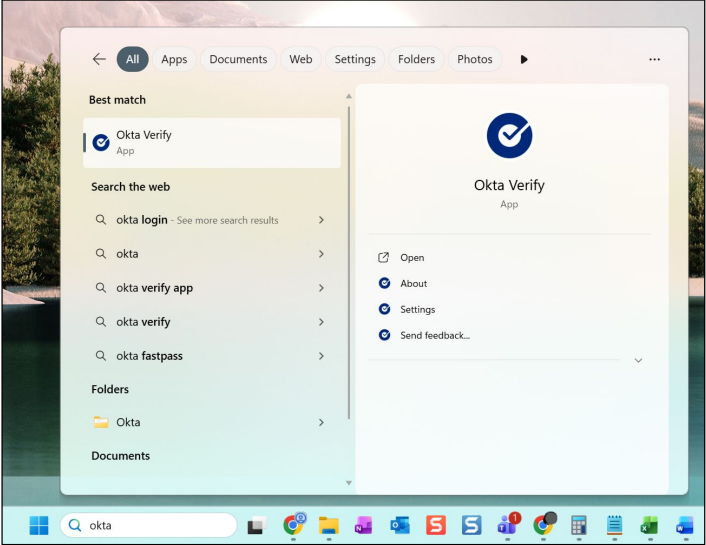
Search "Okta" on your desktop and open the Okta Verify app.

Step 02

Get Started

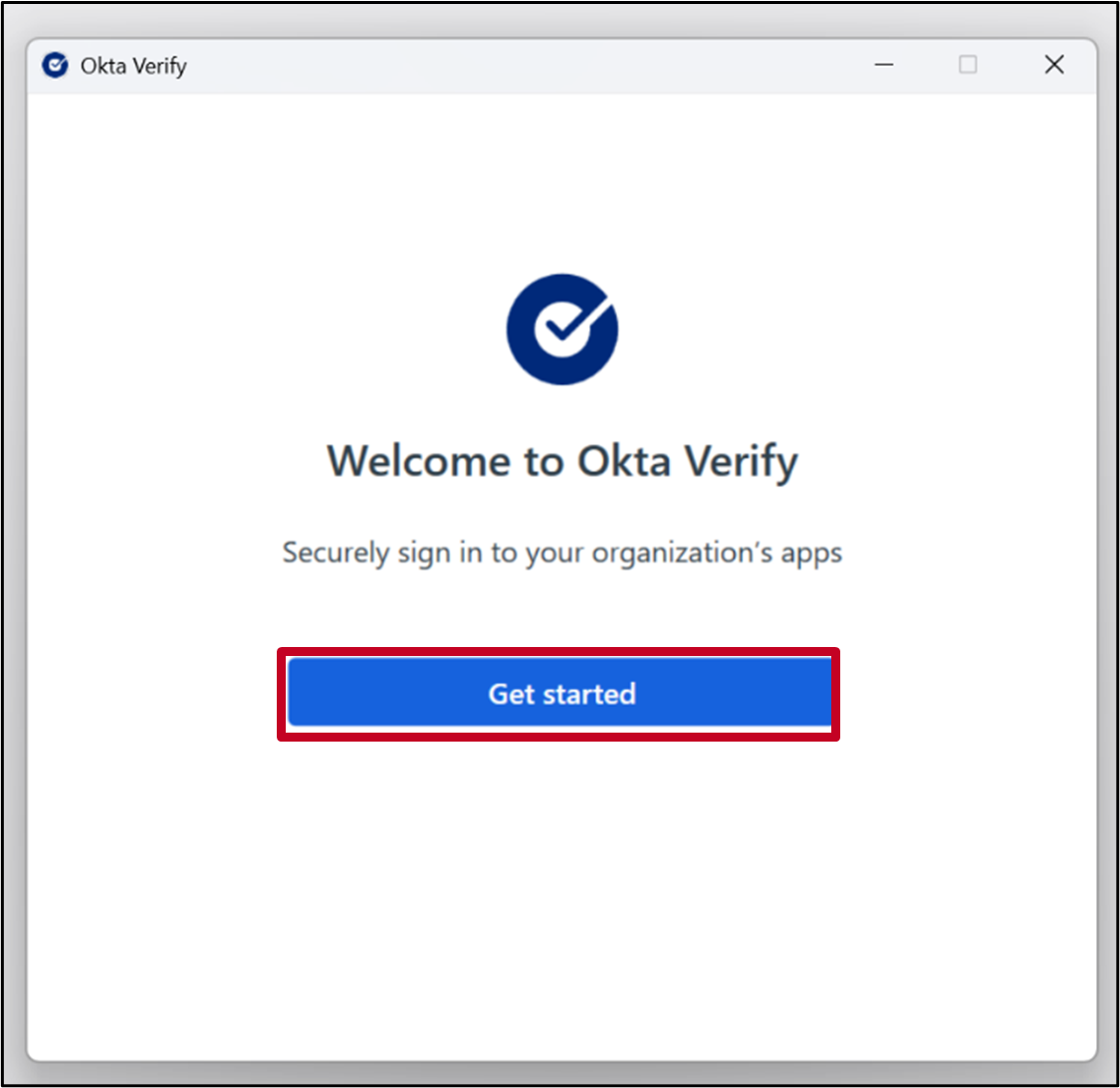
The Get Started page for Okta Verify displays. Click the Get Started button.
Step 2
Step 3

Step 03

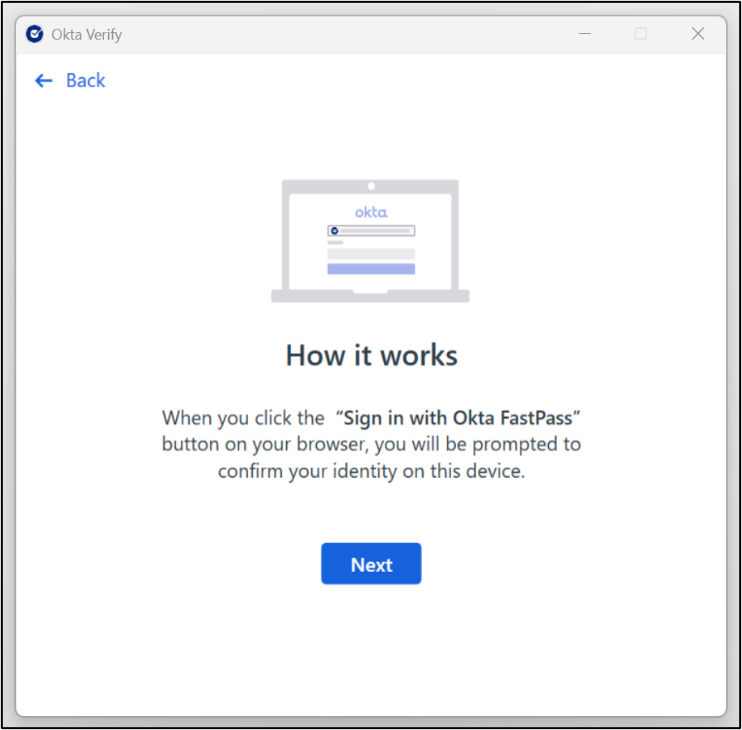
How it Works

The How it works page displays. To begin setup, click the Next button.
Step 04

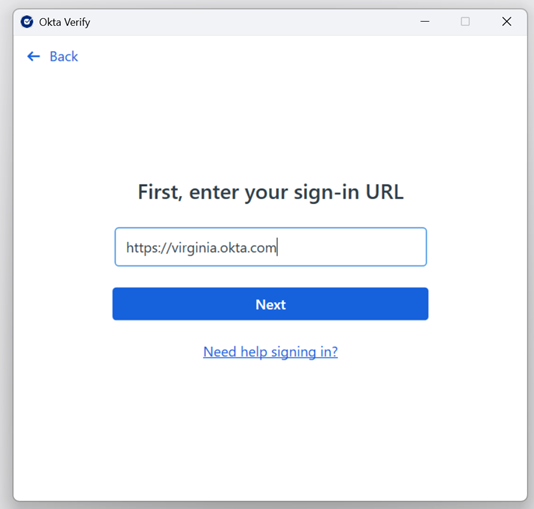
Enter Sign-in URL

Enter the sign-in URL https://virginia.okta.com and click Next.

Step 4
Step 5

Step 05

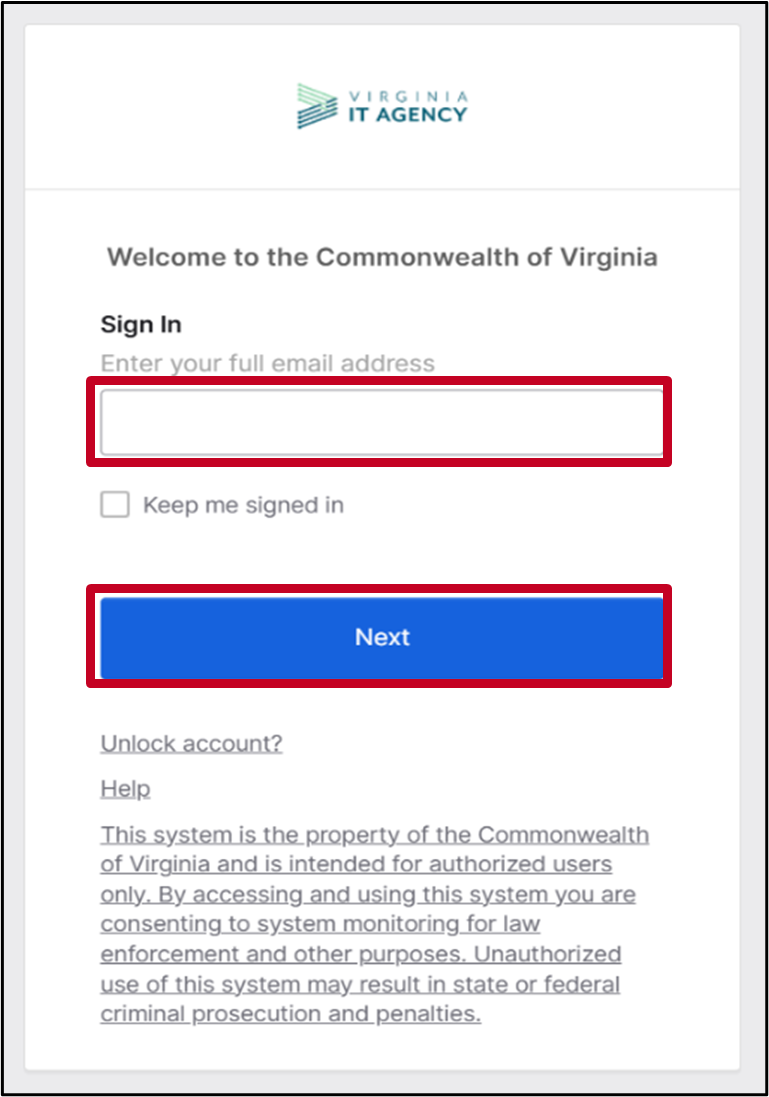
Enter your Email Address

Enter your email address in the box and click Next.

Step 06

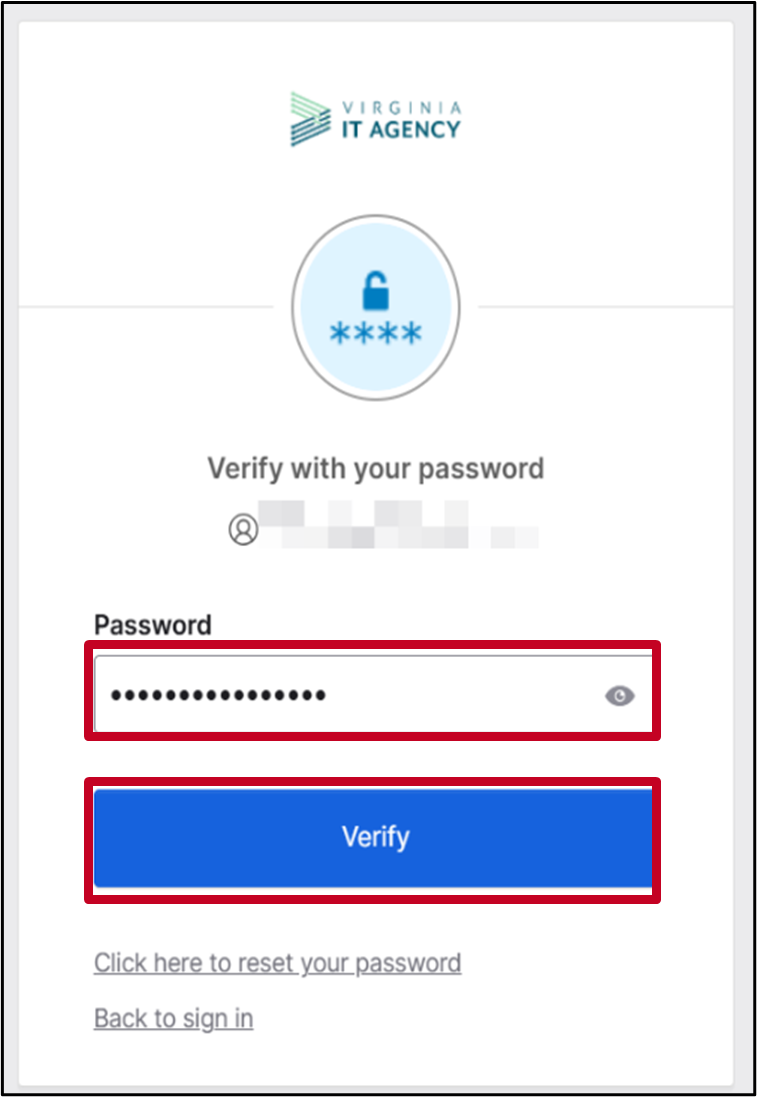
Enter your Password

Enter your Password and click Verify.
Step 6
Step 7

Step 07

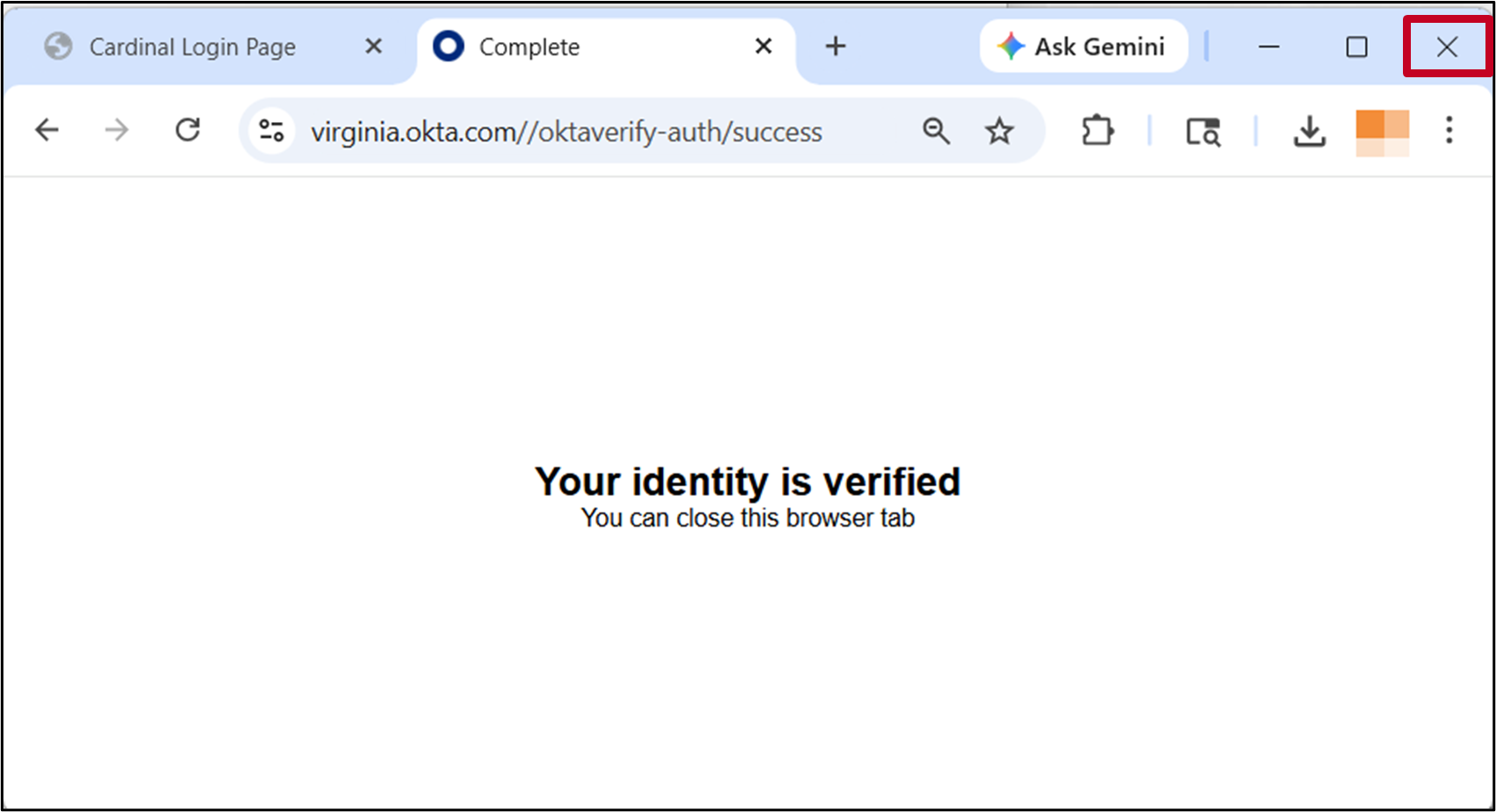
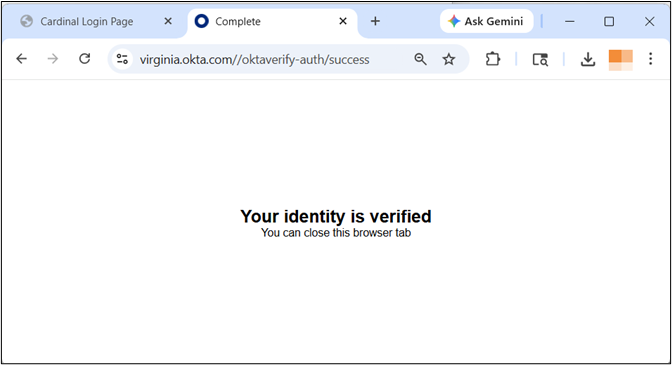
Identity is Verified

Your identity is verified. Close the window by clicking the X.

Step 08

Create a Passcode

Follow the prompts to sign in using your agency's setup. You may need to enter a passcode or use biometrics.

Tip: Any passcode you create will act as your permanent Okta Verify PIN. Remember it for future sign-ins.
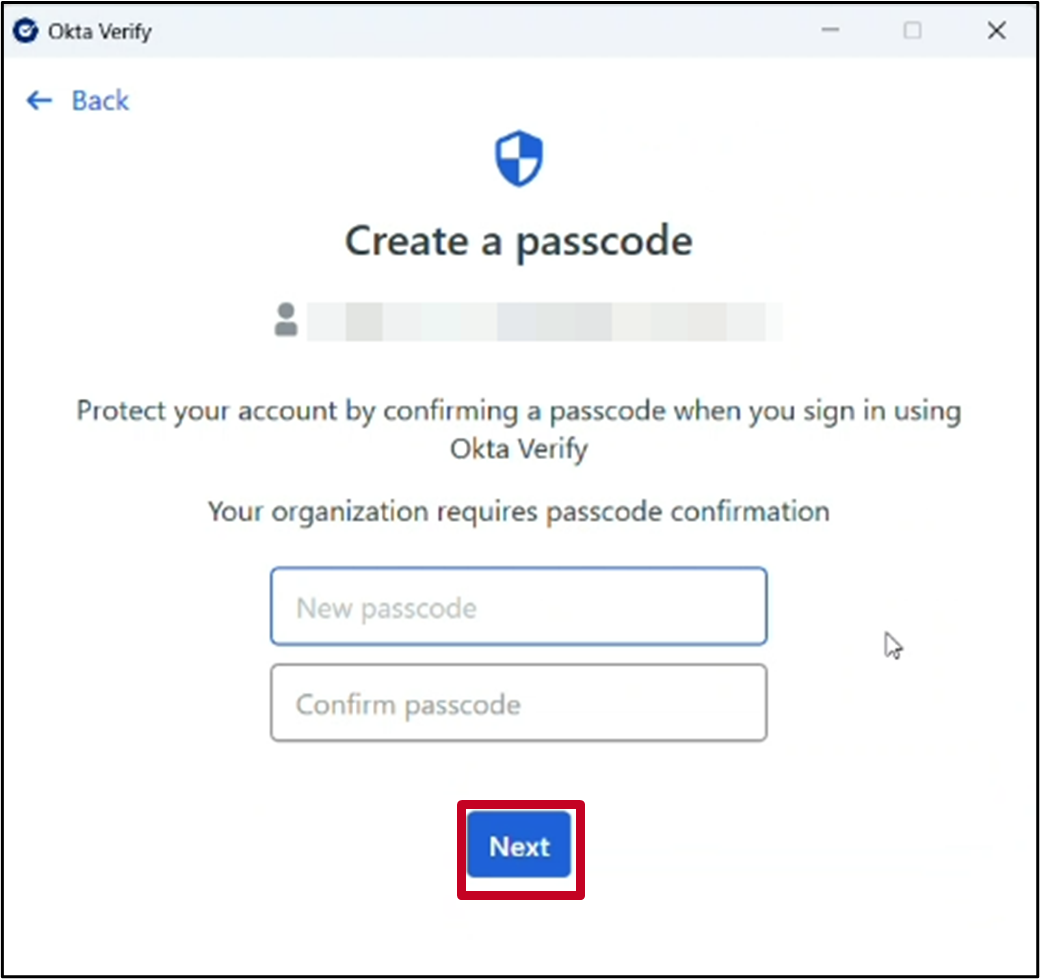
Step 8
Step 9

Step 09

Account Added

Upon successful passcode creation, your account will be added.

Step 10: Complete! 🎉

Okta FastPass setup is complete!

You've successfully setup Okta FastPass as a Multi-Factor Authentication option for Cardinal!

Success
  • Applications
    • Financials
    • Human Capital Management
  • Site Resources
    • Login Help
    • Security
  • External Resources
    • VITA Customer Care Center (VCCC)
    • Virginia IT Agency (VITA)
    • Virginia Department of Accounts
  • Web Policy
    • Accessibility

Cardinal

6800 Paragon Place, 3rd Floor • Richmond, VA 23230

Cardinal is available to all users 24 hours a day, 7 days a week, except on Sundays from 8:00 a.m. to 5:00 p.m.

Cardinal Project • Copyright © 2026 • WAI Compliance

Let's Find What You Need:
Search Instead
Select a User Group:
Go Back
Select an Application:
Go Back
Select a Module:
Go Back