Cardinal MFA: SMS and Phone Options End April 27 for Non-COV Agencies | Learn More

Cardinal

  • my.cardinal.virginia.gov

Main Menu

  • Applications
    • Applications Overview
    • Financials (FIN)
    • Human Capital Management (HCM)
  • Resources
    • Resources Overview
    • Forms
    • Security
    • Reports Catalogs
    • Agency Interface Layouts
    • Mass Upload Templates
  • Learning
    • Training
    • Job Aids
    • ESS392
    • Course Materials
    • Videos (HCM)
    • Videos (FIN)
    • Forums
    • Resource Revisions
  • User Support
    • Login Help
    • User Support Guides
    • Communications
    • Submit a Ticket
    • Locality Users
    • Cardinal MFA
  • About
    • About Cardinal
    • Announcements
    • History
  • LOG IN TO CARDINAL
  • my.cardinal.virginia.gov

Breadcrumb

  1. Home
  2. Setup Google Authenticator

Google Authenticator or Other TOTP Application

Set up Google Authenticator or your preferred TOTP app for Cardinal.

Selecting the "Google Authenticator" option provides a universal QR code compatible with most security apps, including Duo, Microsoft Authenticator, and Rapid Identity. Follow the steps below to enable multi-factor authentication (MFA) using your preferred application.

Before you Begin

You will need the following information and devices:

  • Cardinal Email and Password
  • Smartphone and app store password
  • Computer/laptop 


Step 1

Step 01

Prepare your Phone

Before starting on your computer, ensure your smartphone is ready.

  1. Download an Authenticator App: Go to the Apple App Store or Google Play Store.
  2. Search & Install: Search for Google Authenticator.
    1. Note: You can also use Microsoft Authenticator, Duo, or Rapid Identity if you prefer.
  3. Open the App: Keep the app open and your phone nearby.

Step 02

Log in to your Okta Dashboard

On your computer, log in to your Okta dashboard to begin the setup.

  1. Click this link: https://virginia.okta.com/ or copy the address into your browser.
  2. Enter your Cardinal Username: When prompted for your full email address, enter your Cardinal username (the email associated with your Cardinal account) and click Next.
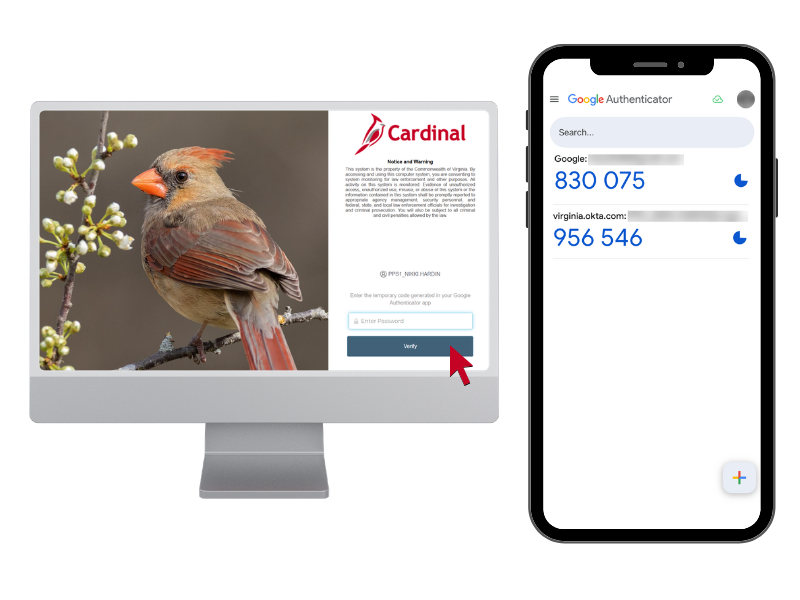
  3. Enter your Password: Enter your Cardinal password and click Verify.
  4. Complete Authentication: Select your current multi-factor authentication method to finish logging in.

Note for COV Users: If you are actively on the network and use an agency-issued email address for Cardinal login, you will not be prompted for MFA.

Step 2
Step 3

Step 03

Open Okta Settings

Click your name in the top-right corner of the dashboard.

Select Settings from the drop-down menu.

Your Account Settings page will open.

Step 04

Set up Google Authenticator

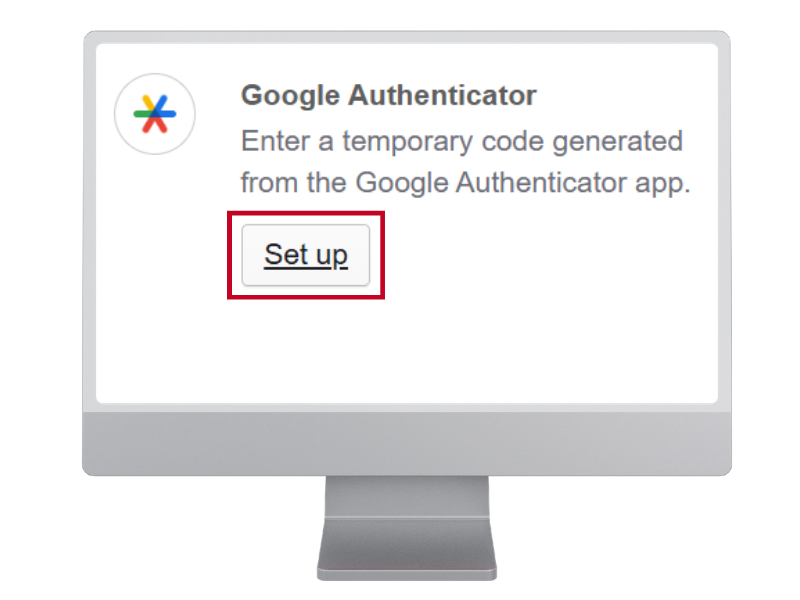
Scroll down to the Security Methods section. Click Set up next to Google Authenticator. 

Selecting "Google Authenticator" on the list of Security Methods options provides a QR code compatible with Google, and other Time-Based One-Time Password (TOTP) generators like Duo, Rapid Identity, Microsoft, and most third-party security apps.

Step 4
Step 5

Step 05

Scan the QR Code.

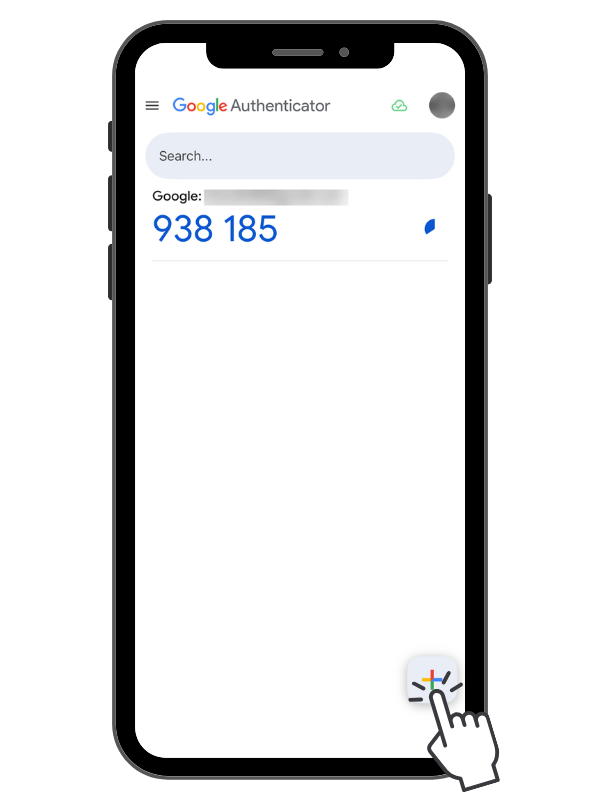
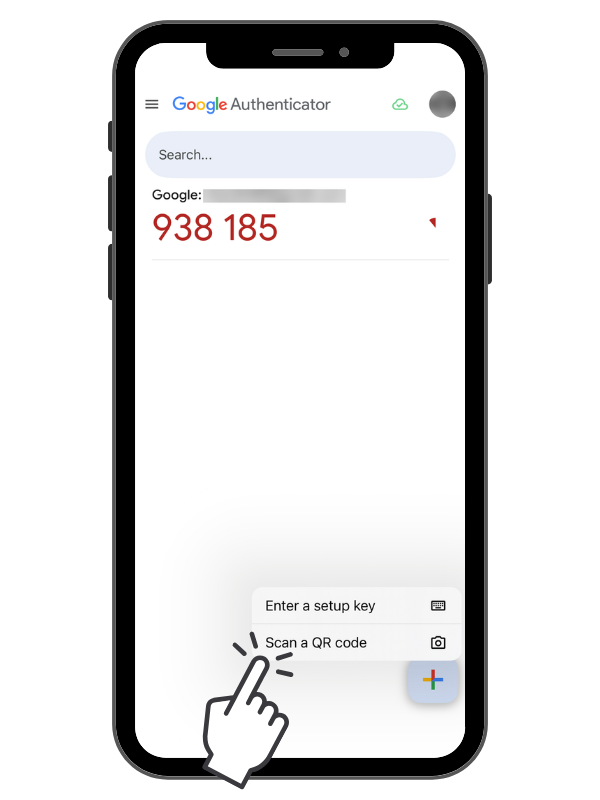
  1. Open the app on your phone, tap the "+" or "Add" icon, and select Scan a QR Code.

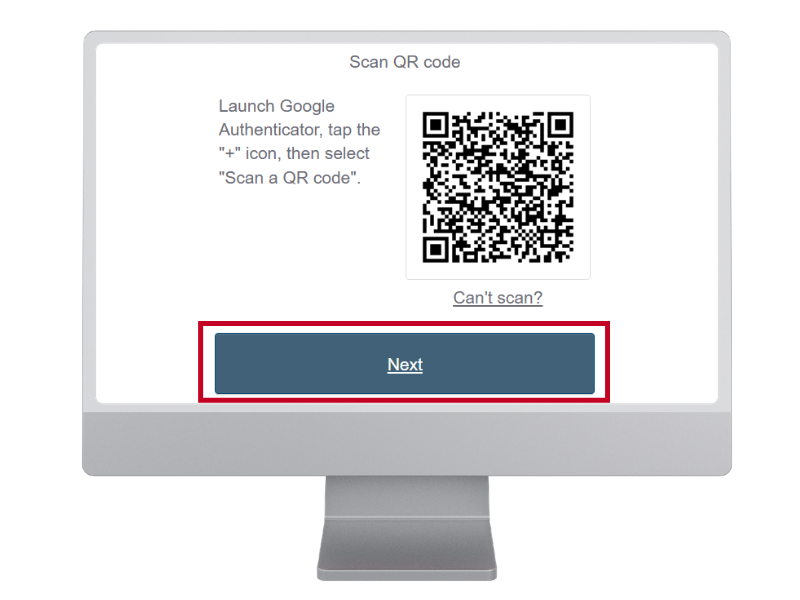
  2. Scan the QR code displayed on your computer screen with your mobile device's camera.

Once scanned, your account will appear in your app listed as virginia.okta.com.

Step 06

App Verification

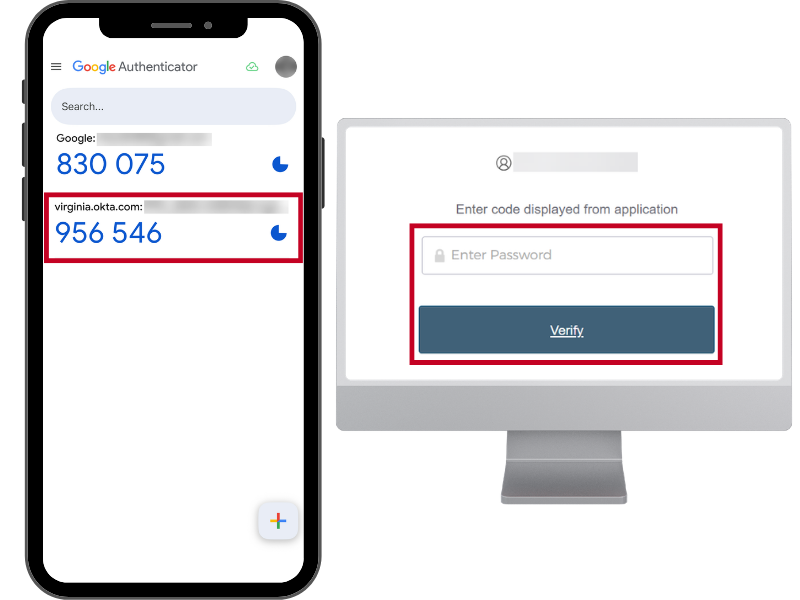
Click Next, then enter the 6-digit code from your mobile app into the verification box and click Verify.

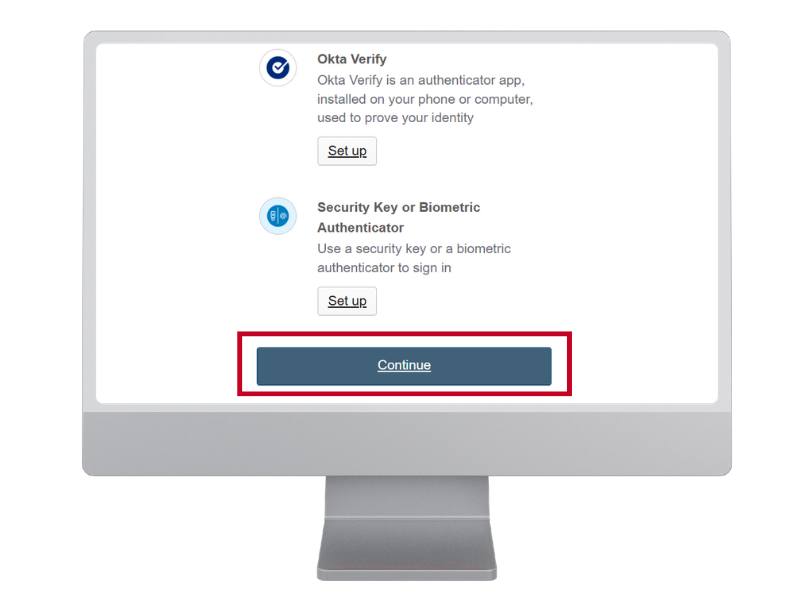
When Google Authenticator or other preferred TOTP application is verified, you will be redirected to the Set up security methods page. 

Step 6
Success

Step 7: Complete! 🎉

Google Authenticator/TOTP App setup is complete!

You've successfully setup Google Authenticator/Other TOTP App as a Multi-Factor Authentication option for Cardinal!

  • Applications
    • Financials
    • Human Capital Management
  • Site Resources
    • Login Help
    • Security
  • External Resources
    • VITA Customer Care Center (VCCC)
    • Virginia IT Agency (VITA)
    • Virginia Department of Accounts
  • Web Policy
    • Accessibility

Cardinal

6800 Paragon Place, 3rd Floor • Richmond, VA 23230

Cardinal is available to all users 24 hours a day, 7 days a week, except on Sundays from 8:00 a.m. to 5:00 p.m.

Cardinal Project • Copyright © 2026 • WAI Compliance

Let's Find What You Need:
Search Instead
Select a User Group:
Go Back
Select an Application:
Go Back
Select a Module:
Go Back